


Google Analytics is a free Web analytics service that provides statistics and basic analytical tools for Search Engine Optimization (SEO) and marketing purposes. This tool is free and available for use on any website with a single Google account. In a digital landscape where data-driven decision-making is paramount, Google Analytics stands as an indispensable tool for anyone seeking to maximise the effectiveness of their online presence. By integrating Google Analytics into your website, you can refine your strategies, boost user engagement, and achieve your business goals with greater precision and confidence.
Google analytics track all the activities on your website; it enables you to know who your audiences are and how they interact with your website. Google analytics is an essential part of every website because it gives in-depth insights into your site as well as helping in Search Engine Optimisation and marketing purposes. In this article, I explain in details with screenshots several ways you can install Google Analytics on your WordPress website step by step.
Table of Contents
Why Should You Use Google Analytics on Your Website?
The goal of every website owner is to drive traffic and get more subscribers to the site, especially bloggers. Every blog owner desires traffic on the blog more than anything else. Google Analytics empowers website owners and marketers with valuable insights into their online presence, enabling them to make data-driven decisions, improve user experiences, and achieve their business goals.
Here are some key reasons why you should consider using Google Analytics:
- Visitor Insights
Google Analytics provides information about your website visitors, including their age, gender, location, interests, and devices used. This data can help you understand your audience better and tailor your content to their needs accordingly.
- Website Traffic Analysis
Google Analytics allows you to see where your website traffic is coming from, whether it's through search engines, social media, referral sites, or direct visits. This information can help you focus your marketing efforts on the channels that are driving the most traffic to your website. With the increasing use of mobile devices, Google Analytics also help you to understand how well your site performs on different devices. This information is essential for optimising your site for mobile users.
- Content Performance
With Google Analytics, you can identify the most popular pages on your website, helping you to understand what content resonates with your audience. This insight can guide your content strategy and improve user engagement.
- User Behavior
Google Analytics tracks the paths users take through your site, showing how they navigate from page to page. Understanding user behaviour on your website can help you optimise your site's structure and improve the user experience.
- Conversion Tracking
You can set up specific goals in Google Analytics to track crucial actions on your site, such as form submissions, purchases, or other conversions. This helps you measure the success of your marketing efforts and identify areas for improvement.
- E-commerce Analytics
For e-commerce websites, Google Analytics offers insights into your sales performance, including revenue, conversion rates, and average order value. This data is crucial for making informed decisions about your online store.
- Site Speed Analysis
Google Analytics provides information on the loading times of your pages. Faster-loading pages contribute to a better user experience and can positively impact search engine rankings.
- Custom Reporting
Google Analytics allows you to create custom dashboards and reports based on the specific metrics that matter most to your business. This flexibility ensures you focus on the data that is relevant to your goals.
- Data-Driven Decision-Making
By analysing the data provided by Google Analytics, you can make informed decisions about your website strategy, content, and marketing efforts. This data-driven approach can lead to more effective and efficient online operations.
How to Install Google Analytics on your WordPress Website
Installing Google Analytics on your WordPress website involves a few steps. Here's a simple step-by-step guide to help you get started.
Step 1: To set up Google Analytics on your website, you will first need to have a Gmail account; if you don’t have a Gmail account, you need to create one for yourself. The good thing about Google is that with one Gmail account, you can access every Google product and service.
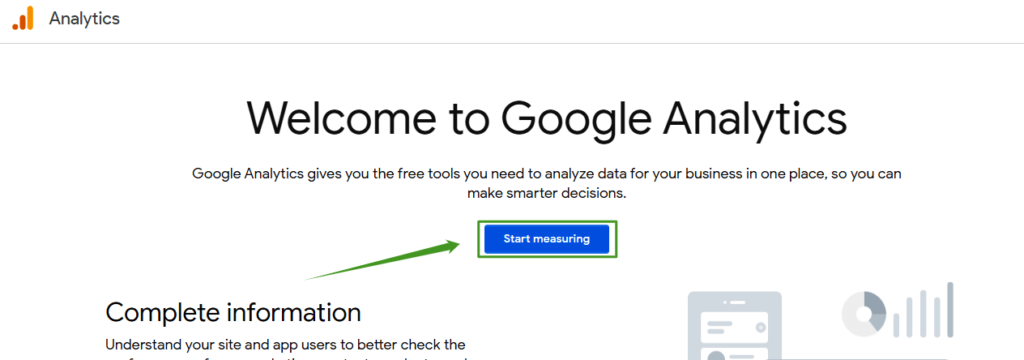
Step 2: Since you are new to Google Analytics, you must sign up for one. Go to the Google Analytics website and follow the instructions to create an account for your website. Once you log on to the Google Analytics page, click the "start measuring" button to sign in to Google Analytics with your Gmail account.
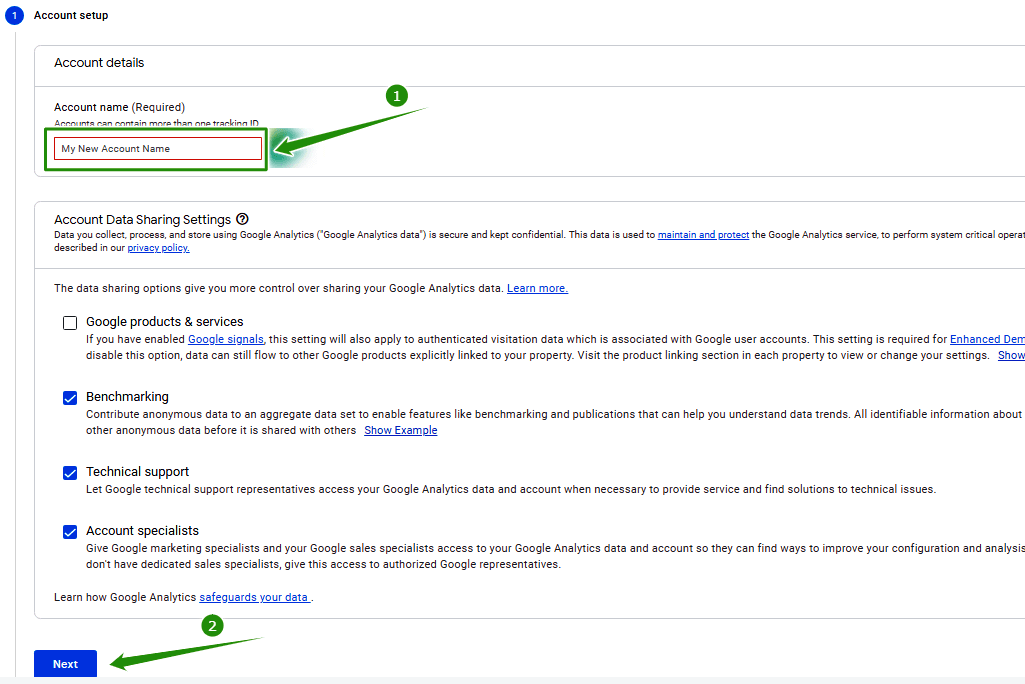
Step 3: Once you clicked the start measuring button, another screen will displayed requesting you to provide your Google Analytics Account Name. Your account can be anything,, it can even be your website or App name. After entering your account name stroll down and click next.
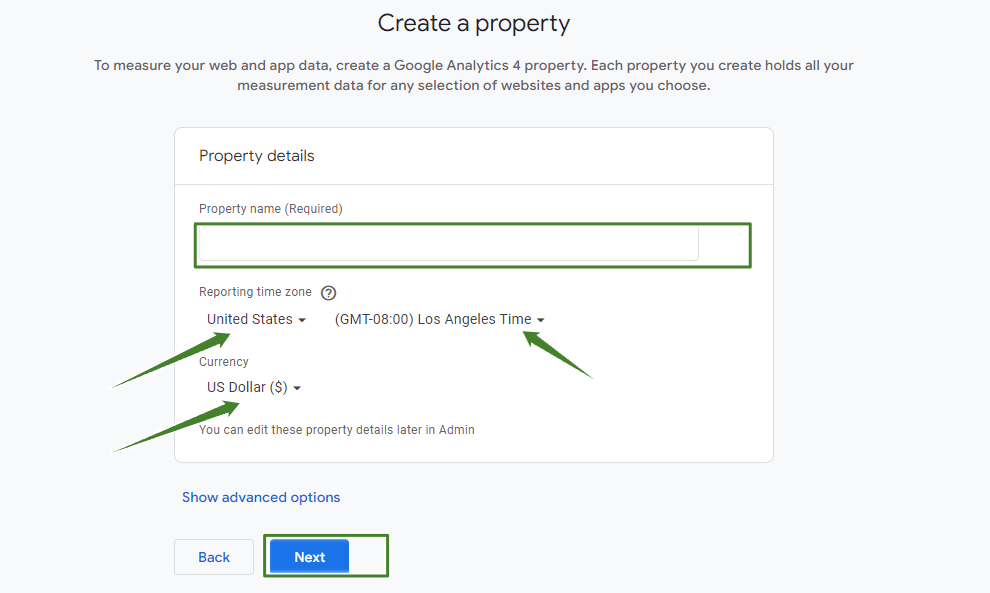
Step 4: The next thing is to create a property name for your Google Analytics property; you can use your website or company name. Select your reporting country and time zone, and ensure you select your country of residence to get accurate reporting in your Google Analytics dashboard. Also, select the currency you want Google to use to calculate your earnings.
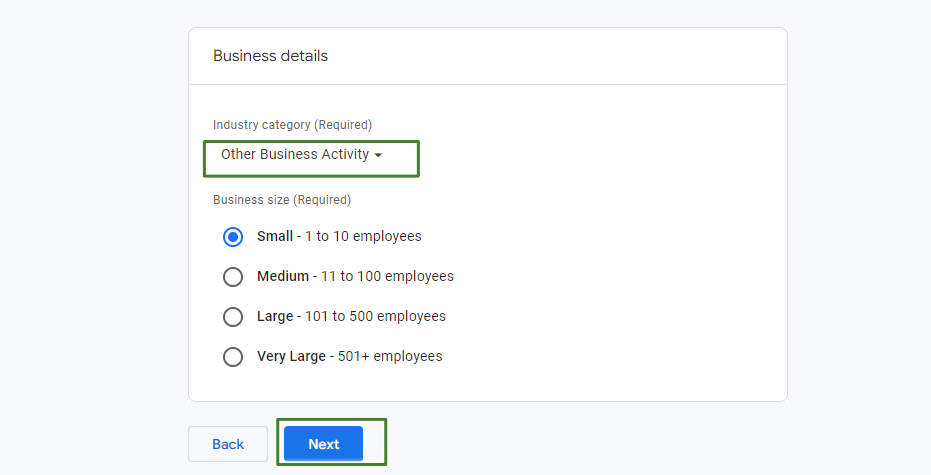
Step 5: In this step, you provide basic information about your business. Select the category your business or website falls into from the dropdown menu; if you can't find your website category from the list, you can select others as your preferred category. Then choose your business size from the provided size. Once you’re done click the Next button.
Step 6: In this step, you will have to select how you intend to use Google Analytics with your business, you can check all that apply to your business or click get baseline report. Once you’re done click the Create button.
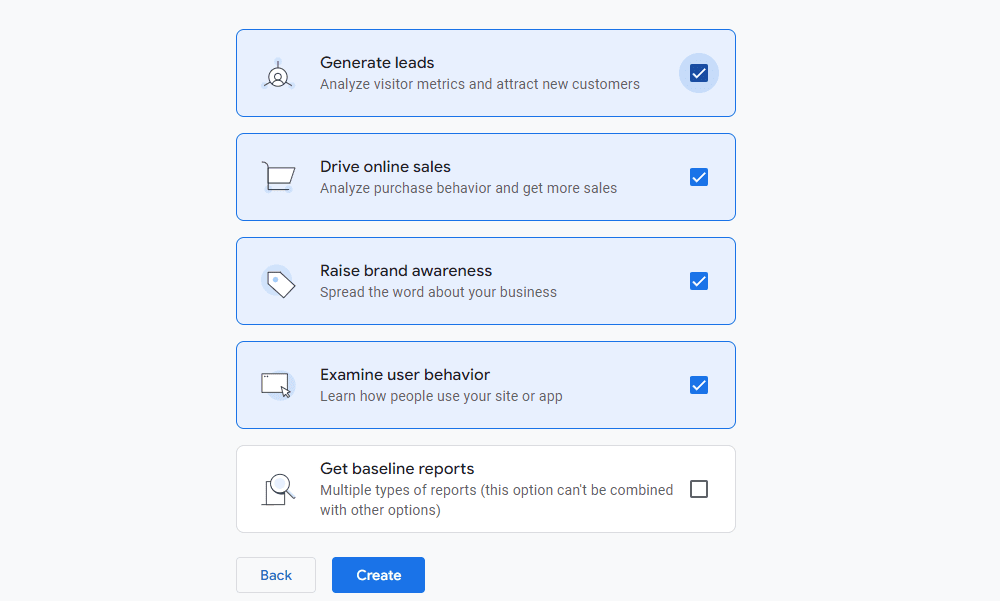
Step 7: Click the check box to agree to Google Analytics terms of use based on your country of residence laws, then click the “I Accept” button to continue.
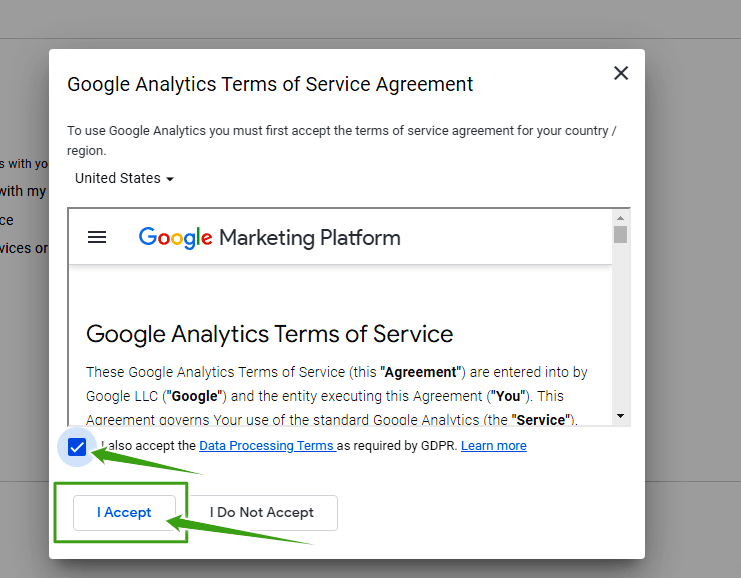
Step 8: In this step, you need to set up the data stream to start collecting data by choosing the platform you wish to use Google Analytics to track. If you want to track your website, select the Web link.
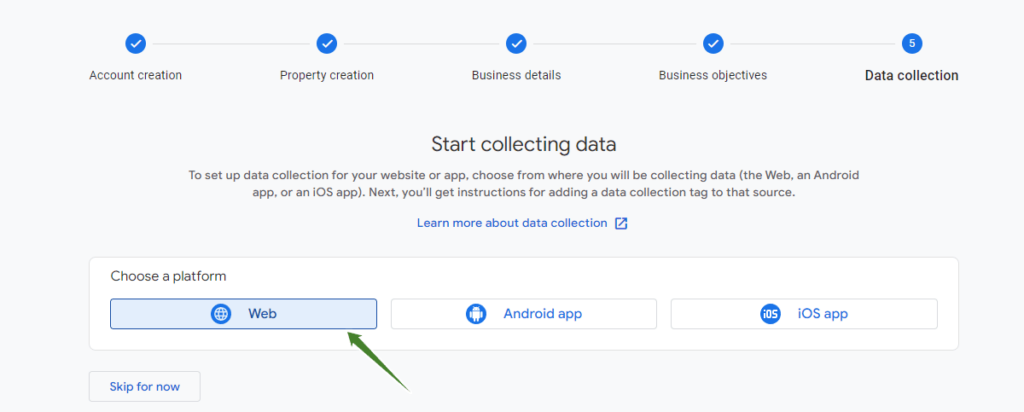
Step 9: At this point, you need to create a stream by supplying your website URL and website name in the box provided and clicking the “Create stream” button to have the data stream created for you.
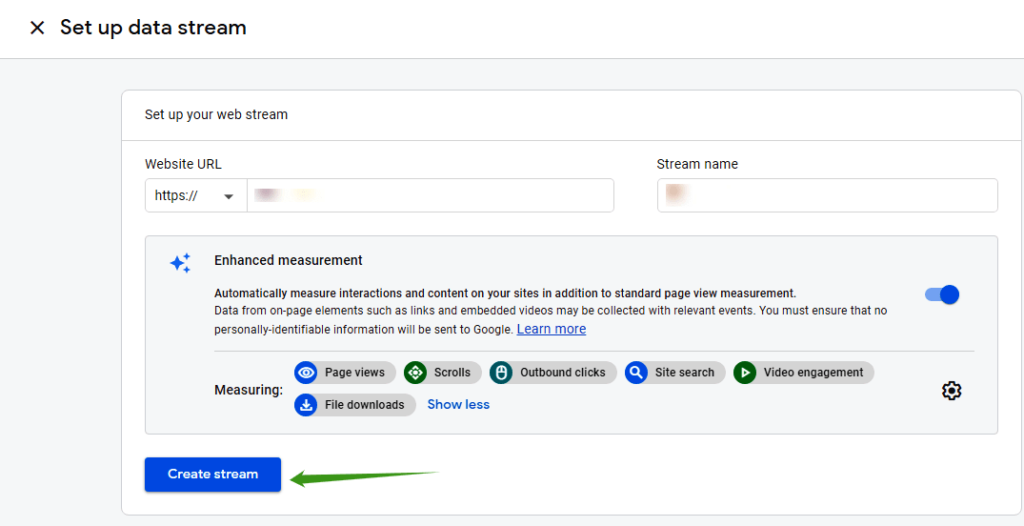
Step 10: In this step stroll down a little from the above step and click the view tag instructions to locate your Google site tag. This is the set of code you will put in the <head></head> section of your website to enable you to receive data from your website in Google Analytics.
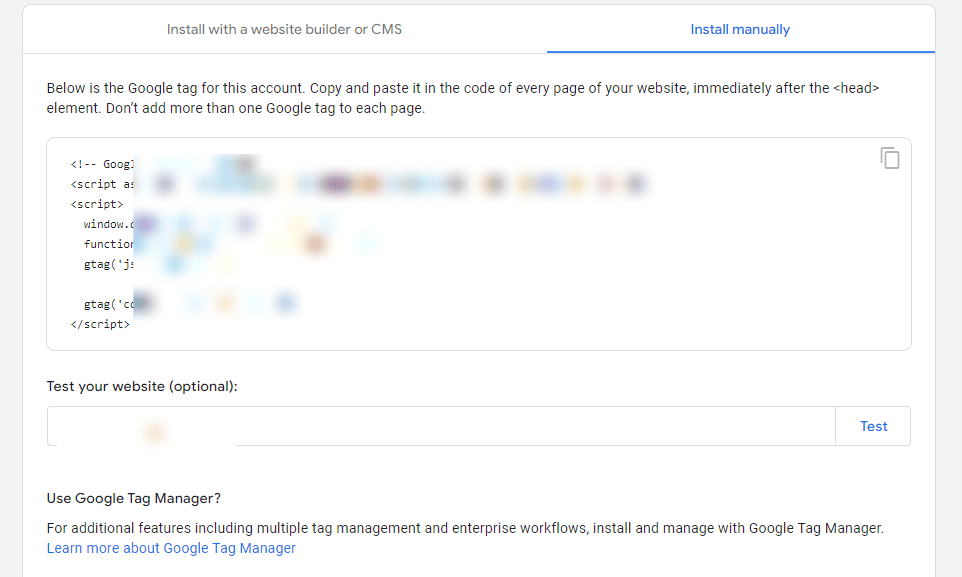
How to Embed Google Analytics Code to Your WordPress Website.
As I said earlier, there are many ways to insert Google Analytics code into your WordPress website. I will you through each steps.
Method 1: Using a WordPress Plugin
In this method, we will a WordPress plugin called MonsterInsights; it is a free WordPress plugin that makes Google Analytics easy for WordPress users without any coding experience. To add Google Analytics to your WordPress website using MonsterInsights, you will need to log into your WordPress dashboard click on plugins then click on the Add New button, and search for MonsterInsights from the search bar at the top right-hand side. It has over 3 million users.
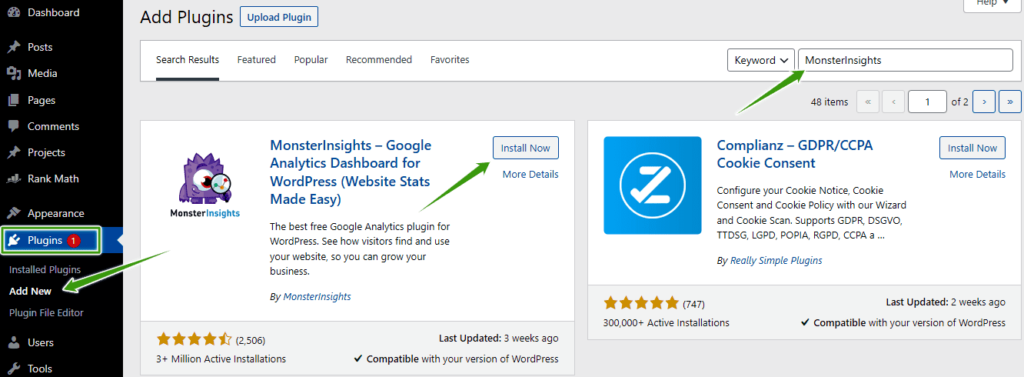
Install the MonsterInsights plugins and activate it. Upon activation, the plugin will add a new menu item labelled ‘Insights’ to your WordPress dashboard. All you need to do is to click Insights » Settings to configure the plugin settings. Just follow the instructions displayed step by step to properly embed your Google Analytics code. You can also upgrade to the Pro version of the plugin for deep insights into the activities of the users on your website.
Method 2: Using Headers and Footers Plugin
Insert headers and footers is a very simple plugin that lets WordPress users insert code directly into a header or footer of their website without fear of any error to the core files of their theme. With this plugin, you can embed Google Analytics into your WordPress site. However, with this method, you won’t be able to track your website traffic from the WordPress dashboard like the first method. You have to log in to your Google Analytics dashboard on your web browser each time you need to track your website performance.
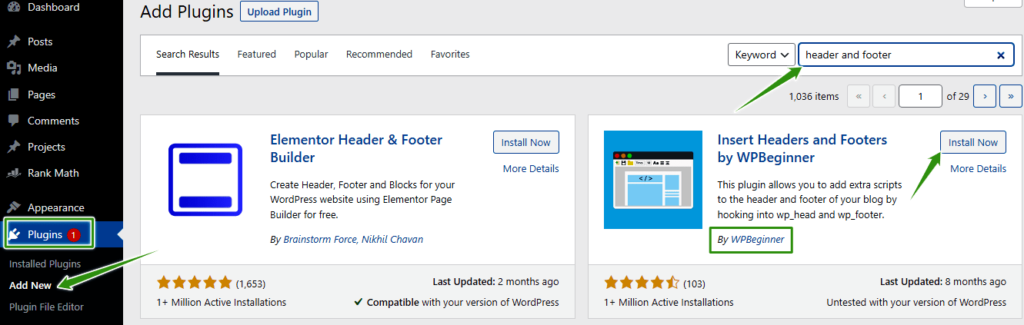
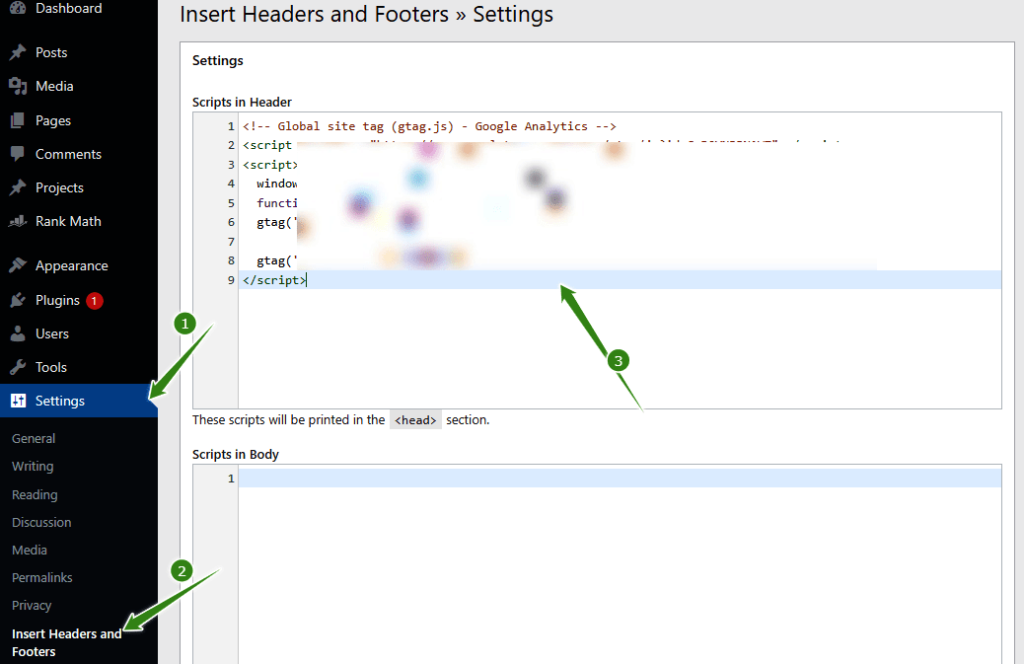
Install and activate the headers and footers plugin from WordPress plugins. Upon activation, go to the settings from the WordPress Dashboard, click the plugin menu then copy the entire Google Analytics code you received and paste it to the header section and click save.
Method 3: Using Header.Php File from WordPress Theme
Please be reminded that this method is for professionals in WordPress and those conversant with coding. However, this method is not that reliable if you are not using a child theme because you have to repeat the process each time you update your WordPress theme. So, to avoid losing your Analytics code each time you update your WordPress theme, you need to install a child theme before using this method.
Pro Tips: Always use a child theme or a site-specific plugin when editing theme files to avoid losing changes during theme updates. If you're uncomfortable with code, use method 1 or 2 above, they are safer and user-friendly options.
To use this method
- Install a child theme and activate the child theme.
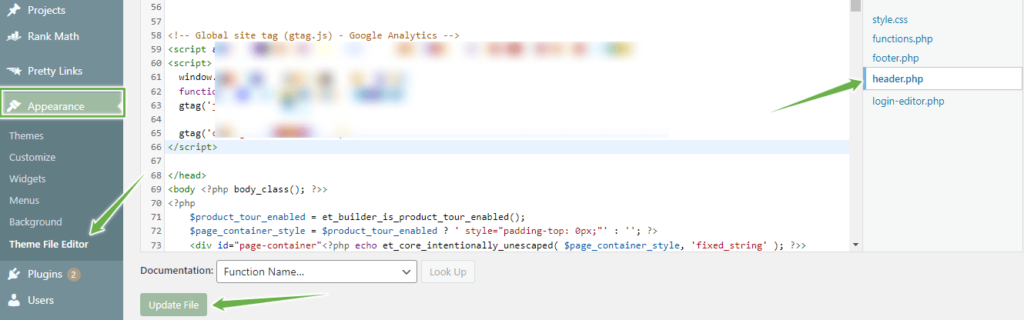
- Click the Appearance from your WordPress dashboard and select Theme Editor at the bottom of the dropdown list.
- Once you are on the editor page, locate the header.php file, click it, carefully copy the Google Analytics code and insert it within the <header> Paste your Google Analytics code within this place </header> tag.
As shown in the image below, then scroll down and click "update file" button to save your changes.
To View Your Website Performance on Google Analytics
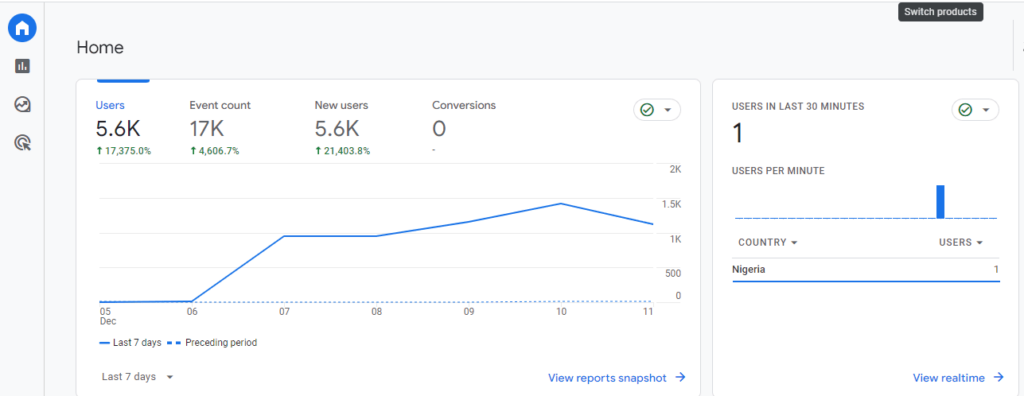
Log in to your Google Analytics dashboard with your Gmail account to explore the unlimited data collected from your website courtesy of Google. Click report tab under customisation. Once you land on the dashboard, you will see some detail of your website performance, such as the number of users, new users, event counts and conversions. There are many other tabs to explore to learn about users activities on your website.
Final Thoughts
Integrating Google Analytics into your WordPress website is a fundamental step towards understanding, optimising, and ultimately enhancing your online presence. The wealth of data provided by Google Analytics will empower you to make informed decisions based on user behaviour, traffic sources, and content performance. By gaining insights into your audience demographics, popular pages, and conversion metrics, you can tailor your content strategies to better meet the needs of your website users.
The flexibility of Google Analytics, whether through custom reporting or e-commerce analytics, gives you a better tailored approach to monitor and improve your website's performance.
Whether you're a beginner utilising plugins for a seamless setup or a pro user opting for manual installation, the process is accessible and yields valuable results. Regularly monitoring and interpreting the data provided by Google Analytics enables a continuous cycle of optimisation, contributing to a more user-friendly experience and better overall success for your website.
I would like to know how this guide has helped you to install Google Analytics on your WordPress website by leaving a comment below.


This is article Can I contact you? Can I write to you directly. It’s so good that i’m going follow you!
yes you can
Thanks for your personal marvelous posting! I quite enjoyed reading it, you can be a great author. I will be sure to bookmark your blog and will come back from now on. I want to encourage you to definitely continue your great work, have a nice morning!|
I really like it whenever people come together and share thoughts. Great blog, continue the good work!
Hi, of course this paragraph is truly nice and I have learned lot of things from it on the topic of blogging. thanks.
Best view i have ever seen !
You actually make it seem really easy with your presentation but I in finding this matter to be really one thing that I think I would by no means understand. It kind of feels too complex and very extensive for me. I’m looking forward in your next publish, Ill attempt to get the grasp of it!
Thanks for finding it useful. If you follow the procedure step by step you should be able to implement it.
This really answered my problem, thanks!